Security cameras are supposed to fade into the background, quietly recording, not pinging your phone every few hours to say they have gone offline again. When a feed keeps dropping, it is usually not a mysterious glitch but a handful of predictable problems that show up in the same ways, from frozen video to “device unreachable” errors. The good news is that once someone understands why the connection keeps cutting out, the fixes are usually simple, cheap, and very repeatable across brands.
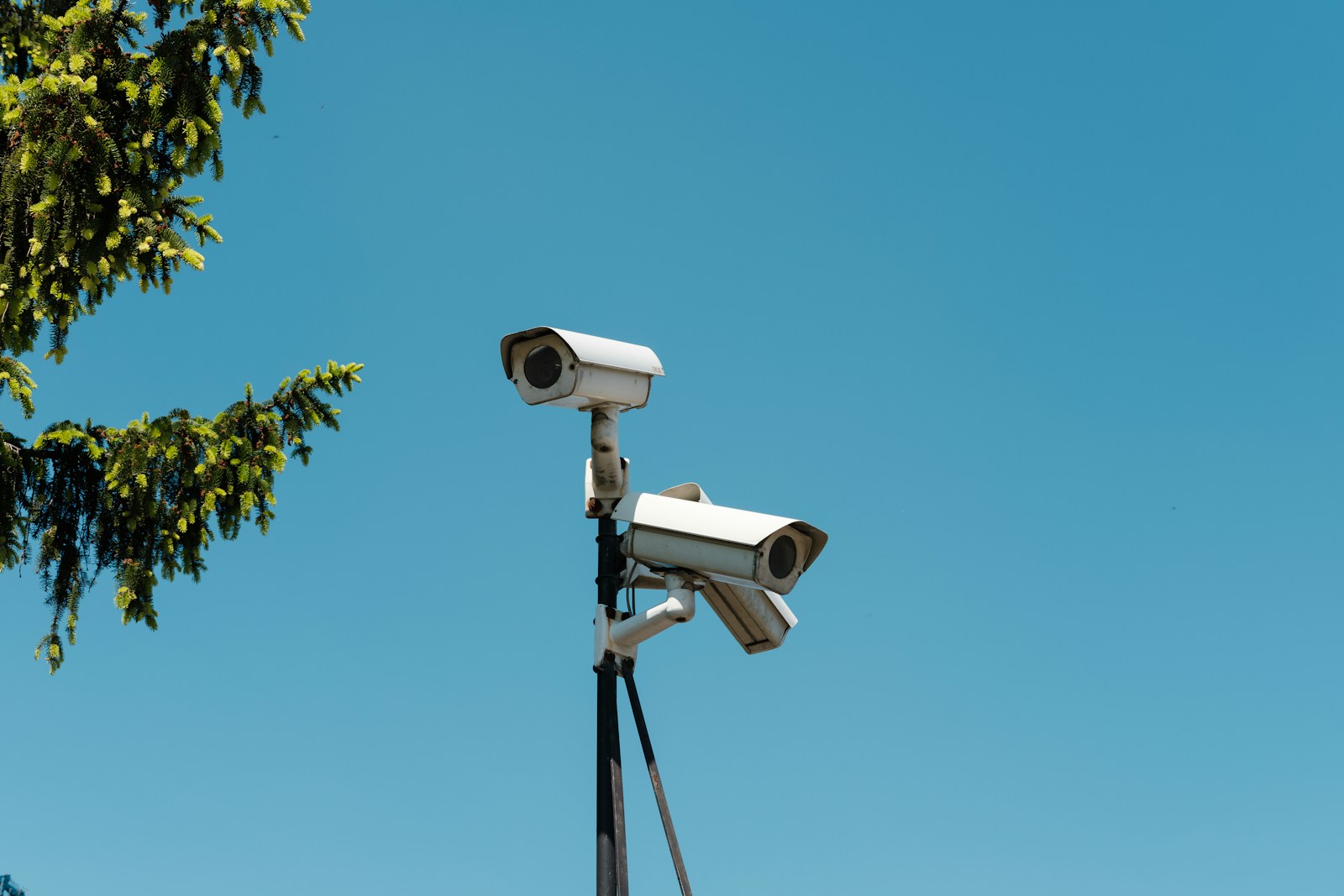
Most disconnects come down to three things: weak or noisy Wi‑Fi, power or wiring issues, and software that has drifted out of sync with the rest of the network. Tackling those in a deliberate order, instead of randomly rebooting gear, gives homeowners a much better shot at keeping cameras online when it actually matters.
Why cameras keep dropping offline in the first place
In a typical house, the Wi‑Fi network is already busy before a single camera comes online, with phones, TVs, laptops, smart speakers, and game consoles all fighting for the same airspace. That crowding creates network interference that hits cameras especially hard, because they need a steady stream of bandwidth instead of quick bursts. When a camera is tucked at the edge of coverage, maybe on a detached garage or a brick exterior wall, every extra device and every extra meter of distance makes the signal more fragile and more likely to drop.
Physical obstacles quietly pile on. Thick walls, metal garage doors, and even big appliances can weaken a Wi‑Fi signal until the camera is barely hanging on, which shows up as choppy video, long loading times in the app, and then full disconnects. Outdoor models are hit with another layer of trouble: long cable runs, exposed junction boxes, and mounting brackets that can act like antennas for electrical noise if the setup is not grounded well, all of which make the connection less stable over time.
How to stabilize the connection without replacing everything
The fastest wins usually come from fixing the Wi‑Fi environment before blaming the camera. Moving the router to a more central spot, instead of hiding it in a corner or behind a TV, can dramatically improve coverage, especially if it is closer to the exterior wall that faces the driveway or backyard. Guidance for outdoor setups consistently recommends placing the router where it can “see” the camera location as much as possible, with one central placement strategy aimed at reducing dead zones around doors and eaves.
Once the router is in a sensible spot, it is worth cleaning up the airwaves. Co‑channel interference, where multiple devices and neighbors all sit on the same Wi‑Fi channel, is a classic culprit for unstable camera feeds. Adjusting the router to a less crowded channel and, where possible, steering cameras to 5 GHz instead of 2.4 GHz can cut through that noise, a tactic highlighted in detailed advice on choosing channels for wireless cameras. For homes where walls and furniture are unavoidable obstacles, adding a mesh node or dedicated extender near the camera can offset the way physical barriers drag down bandwidth and transmission quality.
When it is not Wi‑Fi: power, wiring, and resets that actually help
If the signal looks solid but the camera still keeps vanishing from the app, power and cabling move to the top of the suspect list. Many offline incidents trace back to loose barrel connectors, tired PoE injectors, or outlets that are controlled by wall switches someone occasionally flips off. A straightforward checklist that starts with checking power, verifying the outlet, and confirming that indicator LEDs are lit will catch a surprising number of “mystery” failures. For IP systems tied to a recorder, it is also worth inspecting the antenna on wireless models and the Ethernet run on wired ones, since guidance on how to fix IP cameras that lose connection with an NVR starts with making sure the antenna is not loose and the cable is seated correctly.
When hardware checks out, a clean reset can clear out bad settings that have built up over time. Support communities often recommend holding the reset button for a full 10 seconds, then temporarily moving the camera close to the router to set it up again and see if it stays online, a pattern spelled out in advice that suggests users factory reset stubborn devices. Broader troubleshooting guides for offline systems echo the same rhythm: confirm status lights, inspect connectors for rust or corrosion, and then walk through a step‑by‑step process instead of guessing. When cameras are battery powered or use cellular backup, it is also smart to look at the basics like charge level and SIM signal, since recurring dropouts are often tied to a dropped Wi‑Fi signal, weak cellular coverage, or even faulty wires.
For owners who have ruled out all of the above and still see cameras blinking offline, the remaining suspect is usually the broader network or firmware. Some manufacturers explicitly warn that a marginal Wi‑Fi signal will cause frequent disconnections, and they encourage updating both the camera app and the device firmware once the signal is stable. Others point out that most homes run several at once, so upgrading an aging router or splitting cameras onto a separate SSID can be the final step that keeps the feed steady instead of dropping out when someone starts a 4K Netflix stream.
More from Willow and Hearth:
Leave a Reply